How do I Activate Stat/Transfer without an Internet Connection?
Go to the "About" tab and click the "Activate Online" button.

Stat Transfer pops up a dialogue explaining the offline activation process.

Enter your activation code.

Stat/Transfer generates a long code (Machine ID). Copy or save it.

Take the code to a computer that is connected to the internet and go to webpage (see below for URLs).
Version 14:
https://stattransfer.com/support/offline_act/v14/
Version 15 or Above
https://stattransfer.com/support/offline_act/v15/
Browse to your file, or paste the contents and click Submit

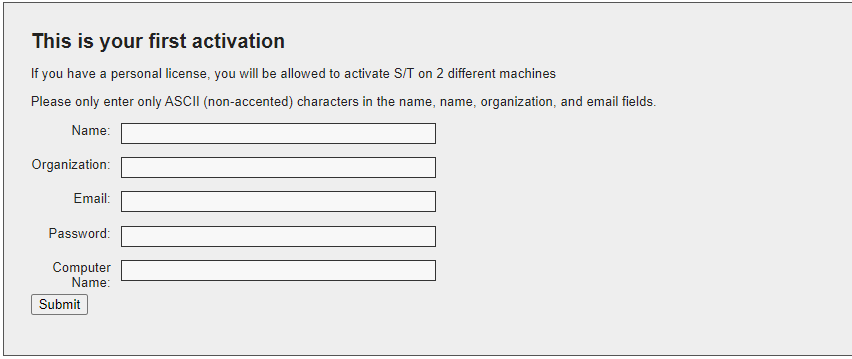
If it is your first activation, you will be prompted to enter your details.
The page will prompt you to download a file called "stat-transfer.lic"
Go back to the unconnected computer. In Stat/Transfer, go to the "About" tab and click the "Install License" button.

A navigation window will appear. Navigate to the license file that you saved ("stat-transfer.lic").
The licence file will appear in the window shown below. Click OK.

You should get this message.

Exit and restart Stat/Transfer.
